Wether you want it or not, Xcode 4 is around to stay when it comes to iOS development. I’ve been happily comfortable with Xcode 3 for quite a while, and my first impressions of Xcode 4 left me completely cold. However, support for Xcode 3 will soon go away, so I need to get ready for the inevitable transition. Maybe I was just having a bad day when I looked at Xcode 4 for the first day. Or maybe my nightmares finally came true and I’ll be forced to look for an alternative IDE. Which one is it? Read on to find out.
To put all the whining and complaining that’s about to come in perspective, I want to build some character references first. I’ve been programming for 27 years, 13 of those professionally in the games industry, although the non-professional years I probably did just as much coding. I have used everything from emacs + make files to the gamut in IDEs: Turbo C++, Visual Studio, KDevelop, and Xcode 3 among others.
Contrary to popular belief, I’m not that picky when it comes to a development environment. Or at least, it doesn’t feel that way to me. I want the basics, that’s all. Doesn’t everybody want this?
- Have 2-3 source code windows opened side by side.
- Build and see the output.
- Do everything with keyboard shortcuts.
There are lots of other things I want (project configuration, debugging, run tests), but those are the ones I’m doing 99% of the time. I never had a problem doing any of those things with past development environments.
The hit list
Having more tools and options is great. I love having the option to do advanced operations on my code, but I want to decide when to use those tools, not being bombarded by them. That, in a single sentence, is why Xcode 4, out of the box, is completely unusable for me.
Attempting to do something as simple as type code and build it is extremely frustrating. Xcode will react to me doing that by flashing all sorts of stuff on screen, bring up sidebars with messages, change which source files are displayed, draw squiggles all over my code, and flash alerts overlays. All of that, while not showing me the build output.
Working on Xcode is an extremely noisy (visually) and distracting experience. I understand it’s trying help me, but it’s failing miserably at it. I’m trying to concentrate on what the code does, and I feel I have a parrot yelling stuff from my shoulder and flapping in front of the screen in some misguided attempt to help me code better.
That might work for some people, but not for me. I’m the guy who turns off “spell check as I type” everywhere because I don’t want to be taken out of flow while I’m typing (I’ll do a spell checking pass later on, thank you). I don’t have notifications on my mail or Twitter; I check them explicitly when I want to. Now take that kind of annoyances and multiply it times 10 and you start getting an idea of what working on Xcode 4 is like. Xcode 4 feels like it’s squarely designed for the texting/ADD generation.
Fortunately, most of it can be remedied and turned into a half-way sane environment.
Here’s how to tame the noise in Xcode 4:
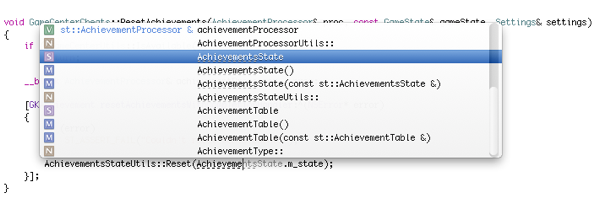
Autocomplete is one of the worst offenders. Turn it off! Good autocomplete is awesome, but I’d rather ask for it (with a keystroke) than have it bombard me constantly. Not just that, but it’s so badly implemented that it will a) put shadows on top of the text I’m typing b) replace the text I’m typing on the fly so I can’t even see what I typed (see screenshot below). Off with it!
Having the whole screen flash with squiggles on and off while I’m typing isn’t helping in any way. Xcode is trying to “highlight instances of selected symbol”, which is a really useful tool, but not while I’m typing/thinking! Not just that, but half the time it will add extra squiggles to the screen to make sure I can’t even read the symbols themselves. So off with that one too.

Here’s one very frustrating thing: When I turn off the option to automatically highlight instances of the selected symbol from the settings, I lose the ability to do that at all. Yes, you heard that right: I can’t (as far as I can tell) press a key and have the IDE highlight all the instances on demand. No sir, that’s not the way it was intended.
Continuing with the theme of noise and distractions, having a sidebar popup and start showing me errors with my code as I’m typing is also definitely NOT helping. Fortunately we can turn off “Show live issues” in the general settings.
One thing that Xcode 4 appeared to have gotten right is the idea of showing multiple source files at the same time. Now many IDEs do that by default these days, so that was a plus. Unfortunately, it’s part of the “smart” assistant. As a general rule, I end up turning off anything with the word “smart” in it, and this is no exception. The assistant tries to present “relevant” files to the one I’m working on. No, no, no, no! *I* want to decide what to display and what to work on. Just get out of the way and let me do that easily. You can turn off the view to “Manual”, which helps a huge amount.
Just those changes make Xcode 4 into something that at least I can type into and not get sick at my stomach. We’re making progress.
Now I can finally build and… everything goes wrong. Xcode doesn’t show me the build output and it decides to flash a “build completed” screen overlay in case I looked away in the two seconds it took to build. Seriously? Maybe my attention was drawn into some of the flashing squiggles and I forgot it was building.

Fortunately for my sanity, it’s possible to fix both those things. The alert is easy: Go to behaviors, “Build succeeds” and turn off “Show bezel alert” (make sure it’s off for all the others while you’re there).
The other one is a bit trickier, but it’s certainly possible. Set up the “Build starts” behavior to open a named tab and go to the current log. Like this: 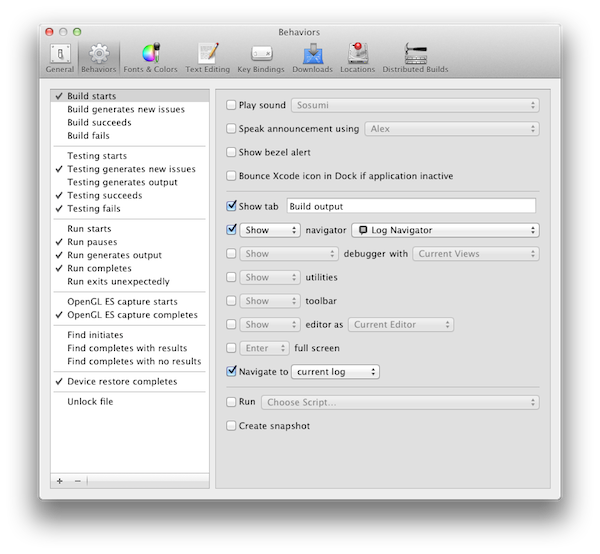
Now when you build your project, you’ll get to see something sane like this. It might initially be as a tab, but you can drag that out and make it into a separate window of its own so it doesn’t obscure the source code window: 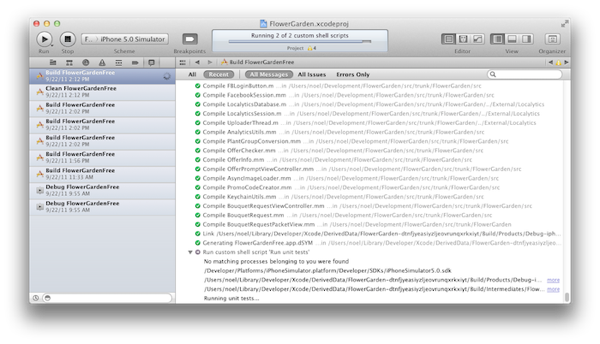
You should be able to navigate through any issues found during the build with Cmd + ‘, or, if you like the fancy issue display, press Cmd + 4. Things are so much better when you initiate them on demand rather than when they’re forced on you!
Finally, a couple minor UI annoyances that are easily fixed:
- The toolbar is positively huge. I feel crammed in the high-res 15" MBP (1680 x 1050), so I can’t imagine how anyone works with something smaller. In any case, hiding the toolbar helps tremendously. As a bonus, the setting is per window, so your source code windows get the extra real estate, but the build output window keeps the toolbar so you have easy access to changing the target platform.
- Line wrap is on by default. Seriously? Off.
The suck list
If that was everything, I’d be happy. It means that even though Xcode 4 ships with retarded defaults, it can be whipped into shape into something usable. Unfortunately, there are a two major things I haven’t found a workaround for:
Can’t build a single file. Someone at Apple, in their infinite wisdom, decided that building a single file was obsolete with the awesome new feature of “show live features”. Except that “show live features” sucks and has to be turned off. Apparently you either take it their way, or the highway, because there isn’t an alternative. As with the case of highlighting symbol instances, there isn’t a command I can use to “show live features” on demand.
The alternative is doing a full build. Most of the time that’s fine, but whenever you’re doing one of those refactorings that breaks half the codebase, then you’re really screwed. The only way I can stay focused in a case like that is by cleaning up one file at the time, but this makes it impossible as you keep getting errors from all over the codebase. And as you fix one, the first error in the next build might be in a different file. Very annoying to say the least, especially because this was working and they removed it on purpose. I never file radar bugs (long story), but I made an exception just for this.
Build configurations and schemes. Did you notice that when you built the project earlier there was no option to choose debug vs. release or some other configuration? That’s another one of those decisions that make you wonder if Apple uses Xcode to manage their own projects (and if they do, what kind of developers or projects they have).
They turned something simple like project configurations that nobody ever complained about, into something byzantine worthy of some of the best efforts from Redmond. This gets the award for “most complicated feature nobody needed or wanted”. It seems now we have an extra layer of indirection. So you act on a scheme, which then decides which configuration to build and what to do. That’s why there are “Build for analysis” (debug), “Build for running” (release), “Build for testing” (WTF?), “Build for archiving” (distribution?).
After spending some time with it, I’m still confused how I would go about running the release configuration, or how to mass-edit all the schemes at once (every target seems to get a different scheme).
The whole schemes thing leaves me completely speechless, and that vein on the side of my forehead is pulsating just from thinking about it, so let’s just move on.
The good
After you take the time to fix Xcode 4 into something usable, and (somehow) put up with the new broken features, is there something to like?
I had to dig deep, but I found a couple of things that I like better than Xcode 3:
- Much better project settings UI: Multiple panes, showing multiple values for different configurations, etc. Way better than Xcode 3.
- Better semantic analysis. During the build process, Xcode 4 was able to correctly flag some problems in my code that Xcode 3 never warned me about. Mostly to do with constness of parent-scope variable when using blocks.
- Better keyboard shortcut support for opening files in different windows (assistant pressing the Option key). I never found a way to open a file in a specific window in Xcode 3 without having to use the mouse.
And that’s pretty much the whole good list that I was able to find :-|
Conclusion
Xcode has been progressively evolving from version 1 until version 3.2. I have no doubt that’s the reason for some of the quirks in the later versions. Xcode 4 seems to be a total re-design and re-implementation, and suffers from the classic second system effect. It’s change for the sake of change, most of the time scrapping useful features and not offering useful alternatives.

I’m sure I only scrapped the surface of the horrors of Xcode 4 in the day I spent with it. I didn’t look very closely at the debugger or the Interface Builder (saving those for another day). I keep hearing about developers with stability problems with Xcode, although I didn’t run into any crashes (but I hardly did any real work with it).
Overall, my recommendation is that, if you’re comfortably working on Xcode 3, stay as far as possible from Xcode 4. We’ll all be forced to move there sooner or later, but in the meanwhile you can continue being productive. Maybe by the time they discontinue Xcode 3, Xcode 4 will have improved a bit.